
How to Use Conference Room Digital Displays?
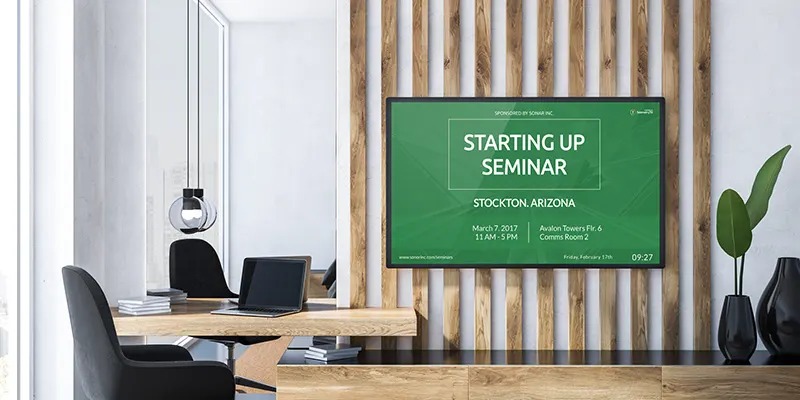
Conference room digital displays are large screens—often LED or LCD—designed to present visual content during meetings. They can show presentations, video calls, dashboards, documents, or even act as interactive whiteboards. Think of them as the digital window through which ideas come alive.
1. Why Modern Meeting Rooms Depend on Digital Displays?
In a fast-paced work environment, clarity matters. Conference Room Digital Displays reduce confusion, save time, and help everyone stay on the same page. Instead of squinting at printouts or fighting with cables, teams can instantly share ideas with a tap or click.
2. Types of Conference Room Digital Displays
Not all digital displays are created equal. Choosing the right type depends on how your team works.
Flat Panel Displays (LED/LCD)
These are the most common displays used in conference rooms. They offer high resolution, excellent brightness, and low maintenance. Perfect for presentations, dashboards, and video conferencing.
Interactive Touch Displays
Interactive Conference Room Digital Displays allow users to write, draw, and annotate directly on the screen. Imagine replacing sticky notes and markers with digital ink that can be saved and shared instantly.
Video Walls
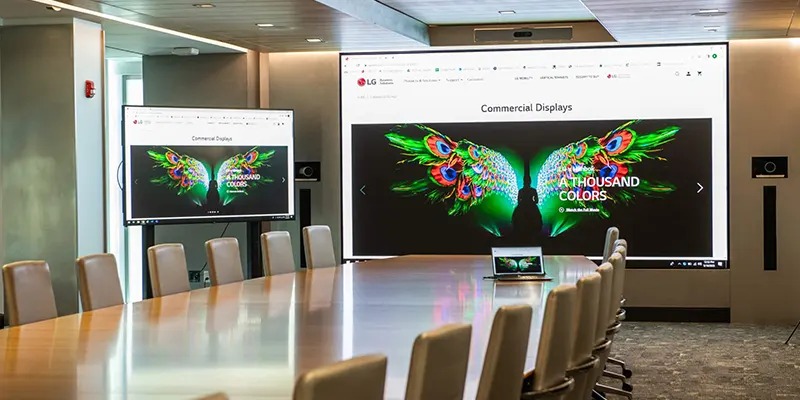
For large boardrooms or executive meeting spaces, video walls combine multiple screens into one massive display. They’re ideal for data-heavy presentations or high-impact visual storytelling.
Wireless Presentation Displays
These displays focus on convenience. With wireless sharing, anyone in the room can present content without plugging in cables—just connect and go.
3. Key Benefits of Using Digital Displays in Conference Rooms
Improved Collaboration
Conference Room Digital Displays turn meetings into interactive sessions. Teams can brainstorm, edit documents live, and visualize ideas together—no more passive listening.
Enhanced Visual Communication
A picture is worth a thousand words, right? Charts, videos, and infographics displayed clearly help ideas land faster and stick longer.
Time-Saving and Efficiency
Meetings start on time when technology works seamlessly. Conference Room Digital Displays reduce setup time and eliminate technical hiccups.
Professional Meeting Experience
Clients and partners notice when meetings run smoothly. A clean, modern display setup sends a strong message about professionalism and readiness.
4. Choosing the Right Digital Display for Your Conference Room
Picking a display is like choosing the right shoes—it needs to fit perfectly.
Room Size and Viewing Distance
Small rooms work well with 55–65 inch displays, while larger rooms may need 75 inches or more. Everyone should see clearly, even from the back.
Resolution and Screen Size
Go for at least 4K resolution. Crisp visuals reduce eye strain and make text easier to read.
Touch vs Non-Touch Displays
If your meetings involve brainstorming or workshops, touch displays are worth the investment. For simple presentations, non-touch screens work just fine.
Compatibility With Existing Systems
Make sure the display supports your laptops, conferencing tools, and operating systems. Compatibility saves headaches later.
5. How to Use Digital Displays During Meetings
Using digital displays effectively during meetings is not just about turning the screen on. It’s about making the display the center of collaboration, communication, and decision-making. When used properly, digital displays keep meetings focused, interactive, and outcome-driven instead of long and unfocused.
Deliver Clear and Engaging Presentations
Conference Room Digital Displays are ideal for presentations because they make content easier to follow. Use clean slides with large text, simple charts, and high-contrast visuals so everyone in the room can read them comfortably. Avoid overcrowding slides—think of the display as a visual guide, not a script.
Animations, short videos, and live data dashboards can be shown smoothly, helping your audience stay engaged. When presenting, stand beside the display rather than blocking it, and use a pointer or on-screen annotation tools to highlight key points. This keeps attention where it belongs—on the message.
Enhance Video Conferencing and Hybrid Meetings
In hybrid meetings, digital displays become the bridge between in-room and remote participants. Use the display to show remote attendees clearly, not as tiny thumbnails. This makes conversations feel more human and inclusive.
Split-screen layouts work well—one side for participants and the other for shared content. Make sure the display is positioned at eye level so in-room attendees naturally face the screen, creating better eye contact with remote colleagues. When everyone feels equally visible, engagement improves instantly.
Enable Real-Time Collaboration and Whiteboarding
Conference Room Digital Displays transform meetings from one-way presentations into working sessions. Teams can write notes, sketch ideas, highlight documents, and make changes together in real time. This is especially effective for brainstorming, planning, and problem-solving meetings.
Unlike traditional whiteboards, digital whiteboards allow you to save everything instantly. Notes can be emailed, uploaded to shared folders, or revisited in future meetings. This continuity helps teams move faster without repeating discussions or losing valuable insights.
Make Screen Sharing Simple and Flexible
Modern digital displays support both wired and wireless screen sharing, making it easy for anyone to present. Encourage participants to switch presenters smoothly without interrupting the flow of the meeting. This keeps discussions dynamic and collaborative rather than controlled by a single speaker.
Wireless sharing is particularly useful for spontaneous ideas. Someone can quickly display a document, website, or data point without searching for cables or adapters. The faster ideas appear on screen, the more natural the discussion becomes.
6. Common Mistakes to Avoid
Even the best conference room digital displays can fall short if they’re used incorrectly. Many problems don’t come from the technology itself, but from how it’s chosen, set up, and used. Avoiding these common mistakes can dramatically improve meeting efficiency and user satisfaction.
Choosing the Wrong Screen Size or Placement
One of the most frequent mistakes is installing a display that’s too small for the room. When participants at the back struggle to read text or see details, engagement drops instantly. On the flip side, a screen that’s too large can feel overwhelming and uncomfortable in smaller spaces.=
Placement matters just as much as size. Displays positioned too high, too low, or directly opposite bright windows can cause neck strain or glare. The goal is comfortable, natural viewing for everyone in the room, without reflections or awkward angles.
Overlooking User Training and Ease of Use
A powerful display is useless if no one knows how to use it. Many organizations assume users will “figure it out,” which often leads to wasted time and frustration during meetings.
Simple training—short guides, quick demos, or clear on-screen instructions—can make a big difference. When employees feel confident using the display, meetings start faster and run more smoothly.
Ignoring Audio and Camera Integration
A common oversight is focusing only on the screen while neglecting audio and camera quality. Poor sound or badly positioned cameras can ruin meetings, especially in hybrid setups.
Digital displays should work as part of a complete system, including microphones, speakers, and cameras. When audio and video are properly aligned, communication feels natural instead of strained.
7. Conclusion
Conference room digital displays are no longer a luxury—they’re a necessity. When used correctly, they transform meetings from dull discussions into dynamic collaborations. From choosing the right display to using it effectively, every step matters. Invest wisely, train your team, and watch productivity soar.
8. FAQs
Q: What size digital display is best for a conference room?
It depends on room size, but most small rooms work well with 55–65 inch displays, while larger rooms need 75 inches or more.
Q: Can digital displays replace whiteboards completely?
Yes, especially interactive displays that allow writing, saving, and sharing notes digitally.
Q: Are conference room digital displays hard to use?
Not at all. Most systems are user-friendly, especially with basic training.
Q: Do digital displays support remote meetings?
Absolutely. Many displays integrate seamlessly with video conferencing platforms.
Q: How long do conference room digital displays last?
With proper care and updates, they typically last 5–10 years.